What is DMARC (Domain-based Message Authentication, Reporting & Conformance)?
DMARC is an email authentication protocol that allows the owner of a domain name to protect it from unauthorized use, such as phishing and domain spoofing. DMARC is an extension of the other two popular email authentication protocols, SPF and DKIM.
DMARC record syntax
For this guide we will use webtool.gr as the domain we want to add DMARC to. An example of a DMARC TXT record is like:
_dmarc.webtool.gr. IN TXT "v=DMARC1; p=quarantine; rua=mailto:dmarc@webtool.gr;"In the above record we have three parameters. The v, the p and the rua parameter. In detail, these variables define the following:
- _dmarc.webtool.gr. : This is the hostname for the DMARC record. Replace "webtool.gr" with your own domain.
- v: the version of the registration
- p: the policy to be applied if DMARC checks fail
- rua: the email address to which DMARC reports will be sent
DMARC policies:
- Policy none: No rejection rule is triggered and the recipient normally receives messages in the mailbox.
Example syntax:v=DMARC1; p=none; rua=mailto:dmarc@webtool.gr; - Policy quarantine: Those emails that fail DMARC check, are placed in a folder such as the recipient's JUNK / SPAM or isolated for further checking.
Example syntax:v=DMARC1; p=quarantine; rua=mailto:dmarc@webtool.gr; - Policy reject: Any emails that fail the DMARC check,are completely rejected and the recipient does not receive them.
Example syntax:v=DMARC1; p=reject; rua=mailto:dmarc@webtool.gr;
How can I add DMARC record to my domain?
- SPF and DKIM checking.The DMARC protocol requires SPF and DKIM records to be present in order to be implemented. For this reason, you must ensure that these records have been successfully added to your domain's zone file.
- Create a DMARC record. You will need to create a DMARC record in your domain's zone file. This is done by adding a TXT record, which will contain information about how you want messages, that do not pass verification, to be handled.
- Setting the DMARC Policy. The DMARC record contains the policy for what should happen to messages that fail verification. As we saw above, there are three options: none, quarantine, and reject.
- DMARC reports. You can configure the DMARC record to receive reports on the emails that were verified. This helps to understand how your email is performing and if you need to make changes to your policy.
Add DMARC via the free DNS Control service
- Login to your account at IP.GR
Instructions for signing in to your account can be found here:
https://www.ip.gr/en/Account_&_Billing/how-can-i-login-my-account-in-ipgr-website-344.html - Head over to the "Domains" section, in "My domains" tab
- Press the button "Edit" to the right of the domain
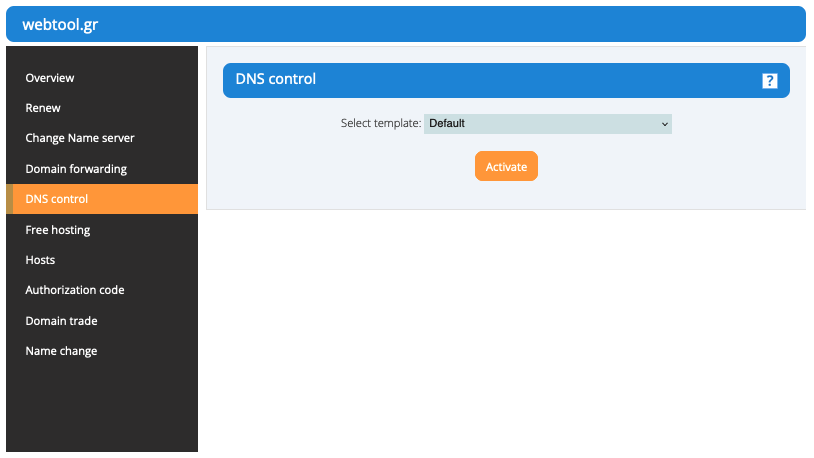
- Active the DNS Control service
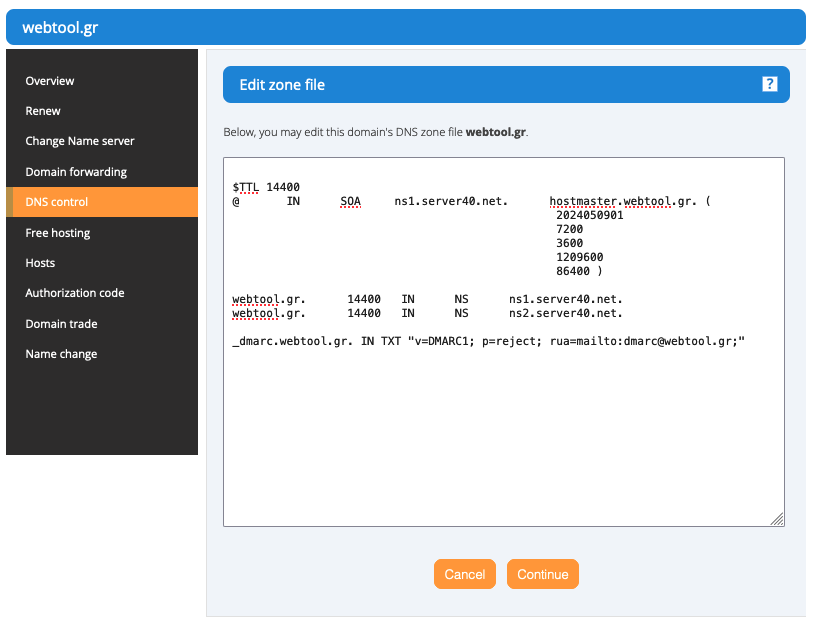
- Press the button "Plain Text Editor" and add the desired DMARC record. In our example we will add a reject policy with emails sent to dmarc@webtool.gr in the following way:
_dmarc.webtool.gr. IN TXT "v=DMARC1; p=reject; rua=mailto:dmarc@webtool.gr;" - Click "Continue" in order to save the changes


Adding DMARC via cPanel
- Sign in to your cPanel account
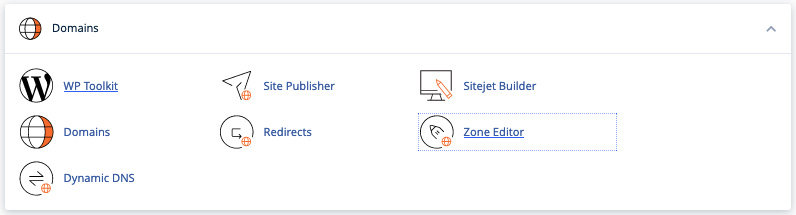
- Head over to : Domains > Zone Editor and then click Manage
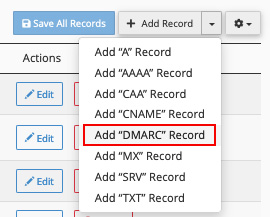
- Click at the Dropdown menu and select the option "Add DMARC record"
- Select the desired policy (none, quarantine, reject) and finally press the button "Save Record" to save the record