


Creating the Application via Python Selector
-
Log in to cPanel

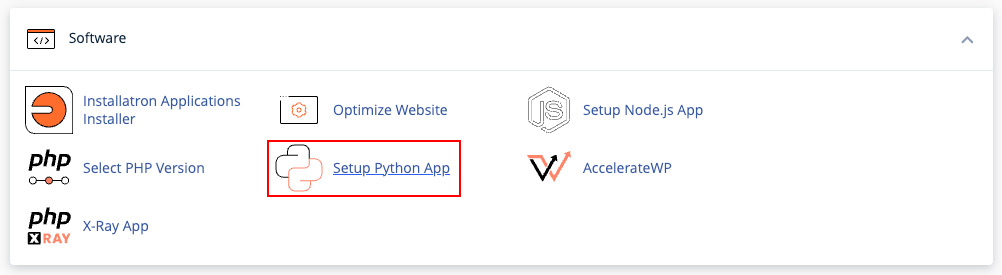
- Navigate to the Software section and click on Setup Python App
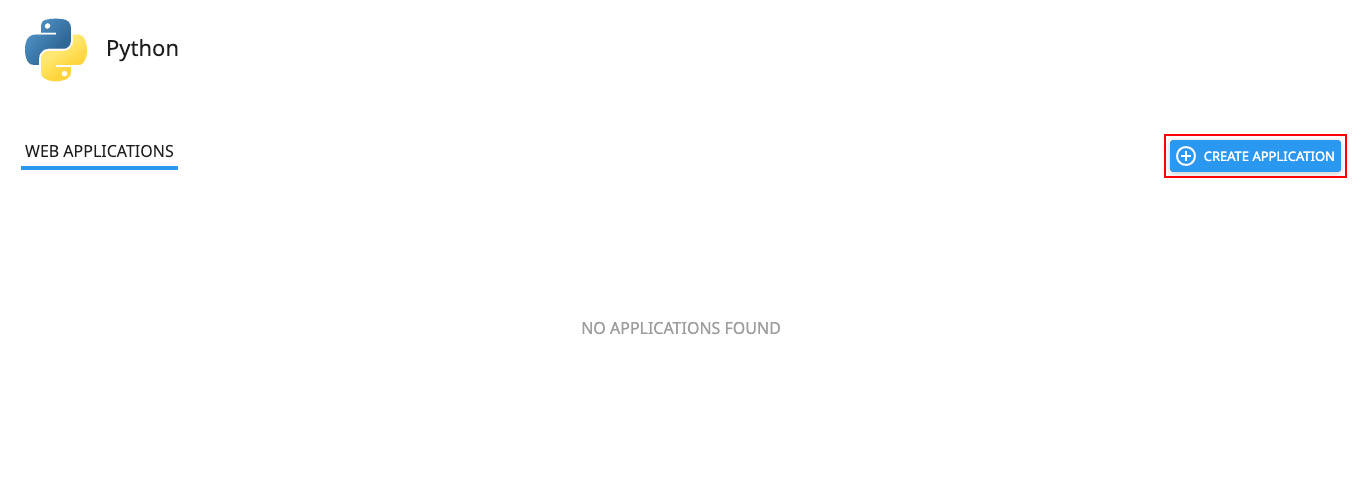
- On the page that opens, click the CREATE APPLICATION button
-
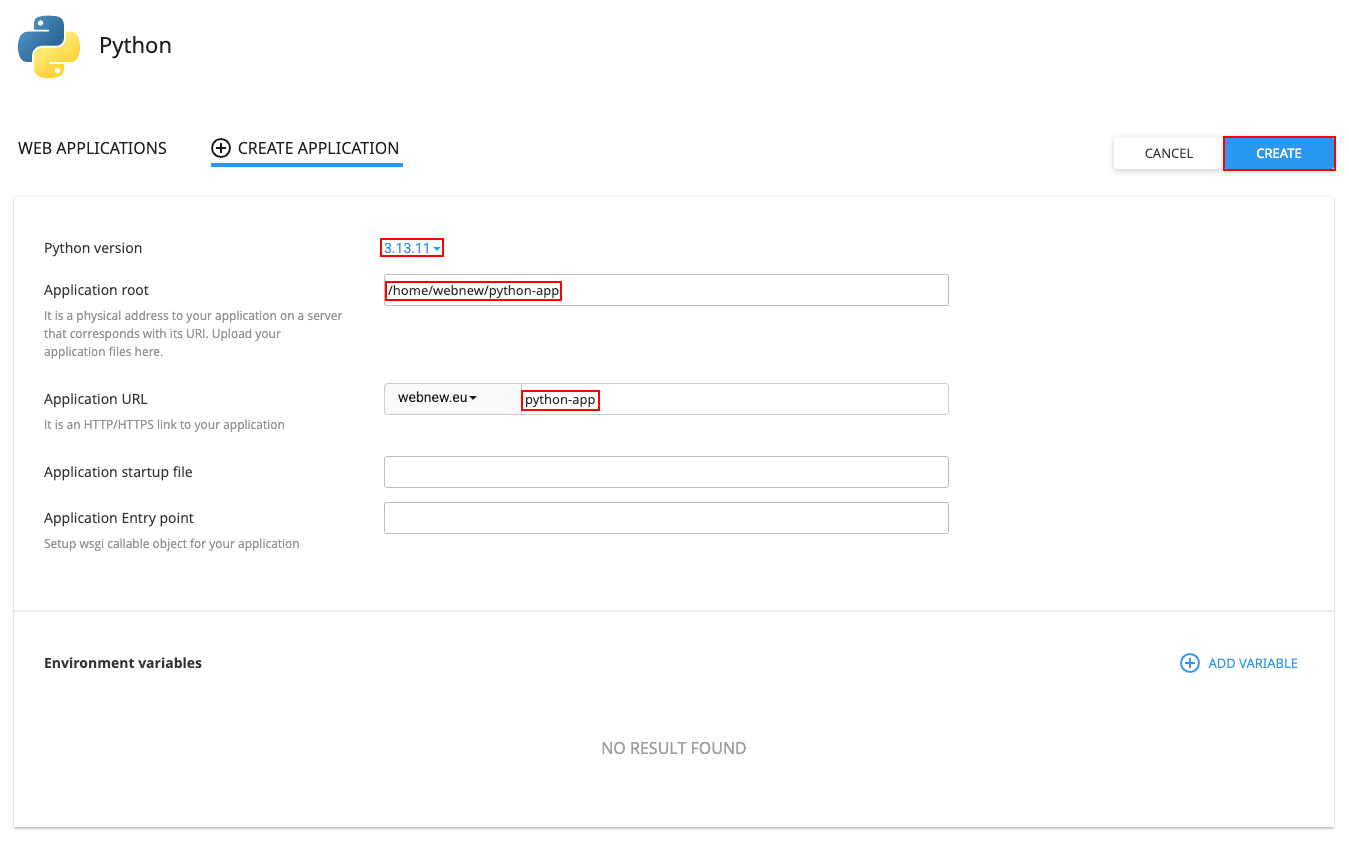
Fill in the form fields:
- Python version: Select the desired version
- Application root: The directory where the application files will be located
- Application URL: The address through which the website will be accessible on the internet
- Application startup file: The initial file that will execute when the application starts
- Application Entry point: The WSGI (Web Server Gateway Interface) file of the application
- Once the above are completed, click the CREATE button
Creating the requirements.txt File
In the requirements.txt file, you declare the packages and their corresponding versions to be installed via pip.
To create the requirements.txt file, log in to cPanel, then go to File Manager, and finally navigate to the directory you specified as the application root.
The file syntax is shown below:
tensorflow==2.3.1
uvicorn==0.12.2
fastapi==0.63.0
Installing Packages with pip
After the requirements.txt file has been successfully created and all dependencies added, navigate back to the Python selector and click the "Run Pip Install" button to install the necessary packages.
How do I execute commands in my Python application?
Python applications are created in the form of a virtual environment. Therefore, to execute commands, you must first gain access to the virtual environment. At the top of the Python selector, the command for this operation is ready and will have the following syntax:
source /home/webnew/virtualenv/python-app/3.13/bin/activate && cd /home/webnew/python-appCopy the command and execute it via cPanel > Advanced > Terminal. This way, you enter the virtual environment and can run your application commands without issue.


